
Migrate WordPress site projects are terrifying for beginners who fear losing years’ worth of content, having their website crash, or having their search rankings disappear overnight. Many website owners remain stuck with subpar hosting companies due to their fear of malfunctioning databases, missing images, prolonged outages, and technical complexity. Many people believe that in order to move their website to better hosting, they need developer expertise or costly professional services. As a result, they choose to put up with slow speeds, security flaws, and expensive plans rather than take the chance of the migration process.
The good news is that the process to migrate WordPress site content between hosting companies has been completely transformed by contemporary tools. Even total novices without technical expertise or coding abilities can successfully migrate WordPress site to new host environments with the help of dependable plugins like WP All-in-One Migration and adequate planning.
Before beginning their migration, website owners should be aware of the following important points:
- To prevent data loss, always make full backups before starting any Migrate WordPress site process
- Depending on your level of technical comfort, select between manual method to migrate WordPress site or choose automated plugins to migrate WordPress site
- The WP All-in-One Migration plugin’s intuitive one-click functionality streamlines the procedure
- With careful preparation, staging environments and DNS management allow user to migrate WordPress site without any downtime
- To preserve content and settings during the procedure to migrate WordPress site’s database, careful export and import are necessary
- Post-migration testing guarantees that everything functions properly at the new site
- After a migration, fix broken links to preserve user experience and search engine rankings.
No time to handle it?🚀
Let us quickly migrate WordPress site for you.
Website owners face a number of circumstances that necessitate migration for the expansion and prosperity of their businesses.
As websites expand, current hosting providers frequently fall short of providing sufficient loading speeds. In addition to frustrating users, slow page loads hurt search engine rankings. Owners are looking for better infrastructure as shared hosting plans struggle with increased traffic.
What is the cost to migrate WordPress site? The only expense associated with do-it-yourself migrations using free tools is time. Depending on complexity, professional services can cost anywhere from £50 to £500. To draw clients, a lot of new hosts provide free migration services.
There are significant risks associated with frequent outages, security lapses, or insufficient backup to Migrate WordPress site. Reputation and valuable digital assets are safeguarded by switching to providers with higher uptime and security.
Related Article
Making thorough backups before attempting to migrate WordPress site installations guards against potential issues.
Techniques for File Backup:
- Use FileZilla to download all WordPress files via FTP
- Compress and download directories using the cPanel File Manager
- Set up backup plugins to package files automatically
Database backup: Use phpMyAdmin to export the entire database as a SQL file. All of the posts, pages, settings, and user information required for a successful WordPress database migration are included in this.
Depending on their technical expertise, website owners choose between manual methods and plugin solutions.
Benefits of Plugins: WP All-in-One Migration and other similar tools use straightforward interfaces to manage files and databases automatically. Ideal for novices seeking simple, rapid migrations.
Benefits of Manual Control: Experienced users value total command over every element. This is ideal for complicated setups or large websites where plugin limitations could be problematic.
Many novices are unsure if WP All-in-One Migration produces trustworthy outcomes. With millions of installations and favourable reviews, this plugin to migrate WordPress site has established a stellar reputation. While premium extensions support larger sites, the free version efficiently manages the majority of small to medium-sized websites.
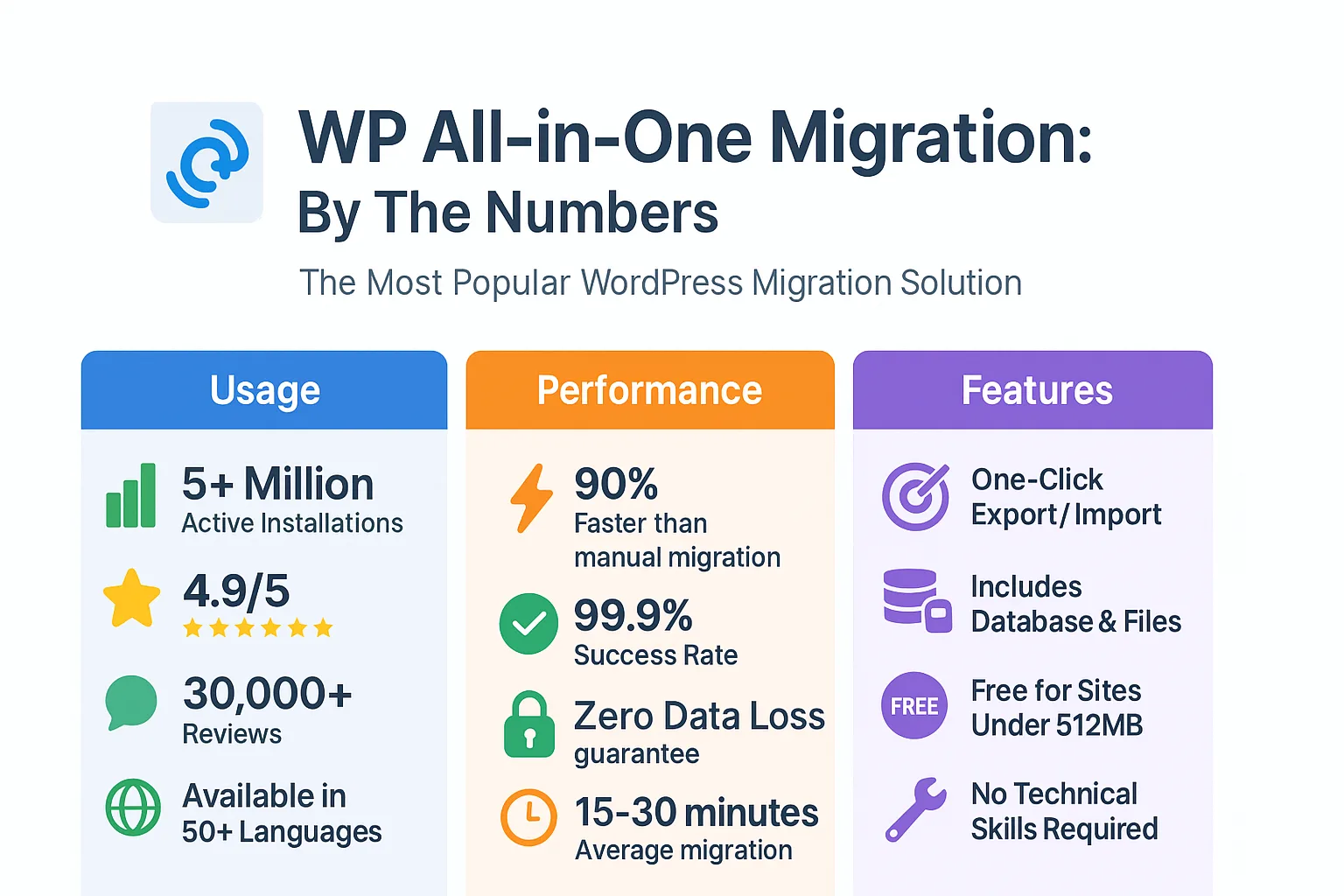
The plugin is excellent at breaking down complex procedures into manageable steps. Customers value its user-friendly interface, which does not require database expertise or FTP access. It manages databases and files automatically, producing a single export file that imports easily at destinations.
Installation Procedure: Set up the plugin on both the new and existing hosting sites. Click Install and Activate on both sites after navigating to the WordPress dashboard, choosing Plugins > Add New, and searching for “All-in-One WP Migration.”
Export Your Website: Find All-in-One WP Migration in the dashboard sidebar on the original website, then choose Export. To bundle the entire website—including the database, media, plugins, and themes—into a single downloadable file, select “Export To File.”
Importing to a New Location: Sign in to WordPress at the new hosting address. Drag the export file into the upload field after selecting All-in-One WP Migration > Import. The migrated website is fully functional after the plugin automatically uploads and extracts everything.
By hand The first step in migrating WordPress is to use FTP clients like FileZilla to download all WordPress files from the current servers. After logging in with your hosting credentials, go to the WordPress directory and download every folder locally.
While you migrate WordPress site, to import and export databases, use the hosting control panel to access phpMyAdmin. Click Export after selecting the WordPress database and selecting the Quick method with SQL format. The file with all the settings and content will then be downloaded.
All WordPress files should be uploaded to the public_html directory after obtaining FTP credentials from new hosting companies. To maintain functionality, keep the directory structure exactly as it is.
Using the new hosting control panel, create a new MySQL database. Click Import after opening phpMyAdmin, choosing the new database, and then uploading the SQL file that was exported from the previous host.
Edit wp-config.php file to update database connection information:
- DB_NAME – New database name
- DB_USER – New database username
- DB_PASSWORD – New database password
- DB_HOST – New database server address
Update nameserver settings via domain registrars to point to new hosting providers if you plan to keep your current domains. Nameserver addresses are provided by new hosts for configuration. DNS propagation is finished worldwide in 24 to 48 hours.
Procedures for updating URLs are necessary for websites that move WordPress to new domain locations. In WordPress admin, update the site address and WordPress address under Settings > General. To safely update all database URL instances, use search-replace plugins such as Better Search Replace.
Go to the wp_options table in phpMyAdmin after choosing the WordPress database. Add new domain names to the siteurl and home rows. Update URLs across post content and metadata tables by running SQL search-replace queries.
Before sending traffic to new locations after migrations are finished, extensive testing makes sure everything works as it should.
Examine different pages to make sure internal links function and images load correctly. Verify that interactive features, contact pages, and forms work on a variety of hardware and web browsers.
Database connection issues indicating incorrect wp-config.php credentials are among the common WordPress migration errors. Theme or plugin conflicts that need to be troubleshooted frequently cause white screens.
After migration, repair broken links by identifying problematic internal links with link checker plugins. Verify menu items for hardcoded URLs that need to be modified, and update absolute URLs to relative formats.
Complete website copies are produced in distinct environments by a WordPress staging site, allowing changes to be tested safely without impacting live sites. This method significantly lowers migration risks by thoroughly testing it before making it available to the public.
Many contemporary hosts come with built-in staging capabilities that enable instant clones with just a few clicks. Plugins enable safe migration testing by creating functional staging environments for hosts lacking native features.
The success of a migration is greatly impacted by the tools chosen:
| Tool | Best For | Price | Key Features |
|---|---|---|---|
| WP All-in-One Migration | Beginners | Free-£239 | One-click, cloud storage |
| Duplicator | Detailed control | Free-£159 | Package installer, scheduling |
| UpdraftPlus | Backup focus | Free-£116 | Incremental backups |
| Manual Method | Full control | Free | Complete customization |
During migrations, WooCommerce-powered online stores require extra care. To avoid business disruption, payment configurations, customer data, and product databases must all transfer without a hitch.
WordPress site installations are routinely cloned by developers for testing. By creating exact replicas that run separately from production sites, cloning enables safe experimentation without endangering the stability of live websites.
Opportunities to optimise website performance are presented by migration. Clean up databases by eliminating post revisions and spam comments. Enhance query performance by optimising database tables with phpMyAdmin.
Put caching solutions into place on newly created hosting environments. Proprietary caching systems tailored to their infrastructure are offered by numerous hosts. Set up caching plugins in accordance with the suggestions of the new host.
Keep a regular backup. To Migrate WordPress site, make schedules guard against potential problems. Maintain security by updating WordPress core, plugins, and themes as soon as possible. Use monitoring services to keep an eye on loading times and uptime.
Considerations for WordPress hosting comparisons include traffic handling capabilities, uptime guarantees, and server response times. Use customer reviews to gauge technical proficiency, response times, and support quality.
Examine renewal rates in addition to special offers. Determine the total cost of ownership over a number of years, accounting for features like email accounts, backups, and SSL certificates.
When moving files between servers, use secure connections (SFTP). Before sending, encrypt exported database files. After procedures are successfully finished, remove all backups and migration files from servers.
Modify the passwords for the database, hosting control panels, and WordPress admin. Install security plugins that correctly configure firewall rules and update security keys in wp-config.php.
A WordPress migration checklist guarantees that no important steps are missed:
Pre-Migration:
- To migrate WordPress site, make a full backup of your database and files
- Update WordPress core, themes, and plugins
- Record the current hosting configuration
- Check access to the domain registrar
During Migration:
- Select a plugin or a manual method
- Move databases and files
- Configuration files should be updated
- If you are switching domains, change the URLs
Post-Migration:
- Functionality and test pages
- Keep an eye on the error logs
- Send in a revised sitemap
- If problems arise, restore the WordPress backup
Plan migrations to minimise the impact on visitors during times of low traffic. Steer clear of significant product launches or sales periods. Schedule the troubleshooting period when both providers’ technical support is available.
To ensure smooth transitions between hosting environments, this site migration guide places a strong emphasis on meticulous planning and execution.
How do I copy content from one WordPress site to another?
To create XML files with posts and pages, use the WordPress export tool located under Tools > Export. Use Tools > Import to import files on destination websites. The greatest WordPress migration tools, such as WP All-in-One Migration, automatically move everything for full copies.
How to migrate WordPress site to a new theme?
Traditional migration is not necessary for theme changes. Before going live, install new themes, adjust menus and settings, and test the look using customiser preview modes.
Can transfer my existing website to WordPress?
Websites that don’t use WordPress can convert by using expert services or manual content migration. Utilising WordPress conversion tools, import content that has been exported from existing platforms.
Can you change a WordPress domain?
WordPress domains are updated with the correct URL. Configure DNS to point new domains to hosting servers, change the domain in WordPress settings, and perform database search-replace operations.
How to change WordPress URL after migration?
Using WordPress admin, update URLs under Settings > General. Use search-replace plugins or manually update the wp_options table in phpMyAdmin to reflect database changes.
How do I change the URL of my WordPress site from the database?
Open phpMyAdmin, choose WordPress database, go to the wp_options table, and make changes to the siteurl and home rows. Update URLs across content tables by running SQL queries.
By gaining useful technical skills, website owners can save money and gain flexibility by learning how to migrate WordPress site installations. Beginners can now successfully migrate thanks to modern tools like WP All-in-One Migration and thorough guides that simplify the process. The secret is meticulous planning, cautious implementation, and extensive testing to guarantee seamless transitions.
Knowing the fundamental procedures increases confidence when selecting automated plugins or manual WordPress migration methods. Better hosting, increased performance, and cost savings are made possible by the ability to move WordPress website installations. Anyone can successfully migrate WordPress to a new host provider and take advantage of optimised hosting environments with the right backups and methodical approaches.

Share on Social Media